Recurring payments release · October 2026
Introducing Recurring Payments
Set it once. Get paid every time. Recurring Payments charges the saved card on your schedule, so memberships, payment plans and donations collect automatically, right inside Salesforce.
Watch
See recurring payments in action
A short walkthrough of setting up a recurring payment schedule in Eposly Point of Sale.
Recurring payments
Get paid on schedule, every time, without the manual work
Memberships, payment plans and donations all depend on charging the same customer again and again. Set up and collect recurring payments inside Salesforce on a saved card, and let Eposly collect each payment automatically when it becomes due, so your team doesn't have to recreate or collect every payment by hand. Each payment and its outcome is recorded on the customer record, ready for reporting, automation and follow-up.
- Set a flexible collection frequency, and choose how the schedule ends: on a set date, after a number of payments, once a target amount is collected, or leave it open-ended.
- Use an existing card on file, or take an initial payment and save the card for future collections in the same flow.
- If a payment fails, Eposly pauses the schedule, records the reason and flags it for follow-up in Salesforce.
How to set up a recurring payment
Set one up on its own from the Setup Recurring Payment tab, or directly from a point-of-sale order. Either way, Eposly creates a payment schedule linked to the customer and collects each payment automatically.
Set one up from the Setup Recurring Payment tab
-
1
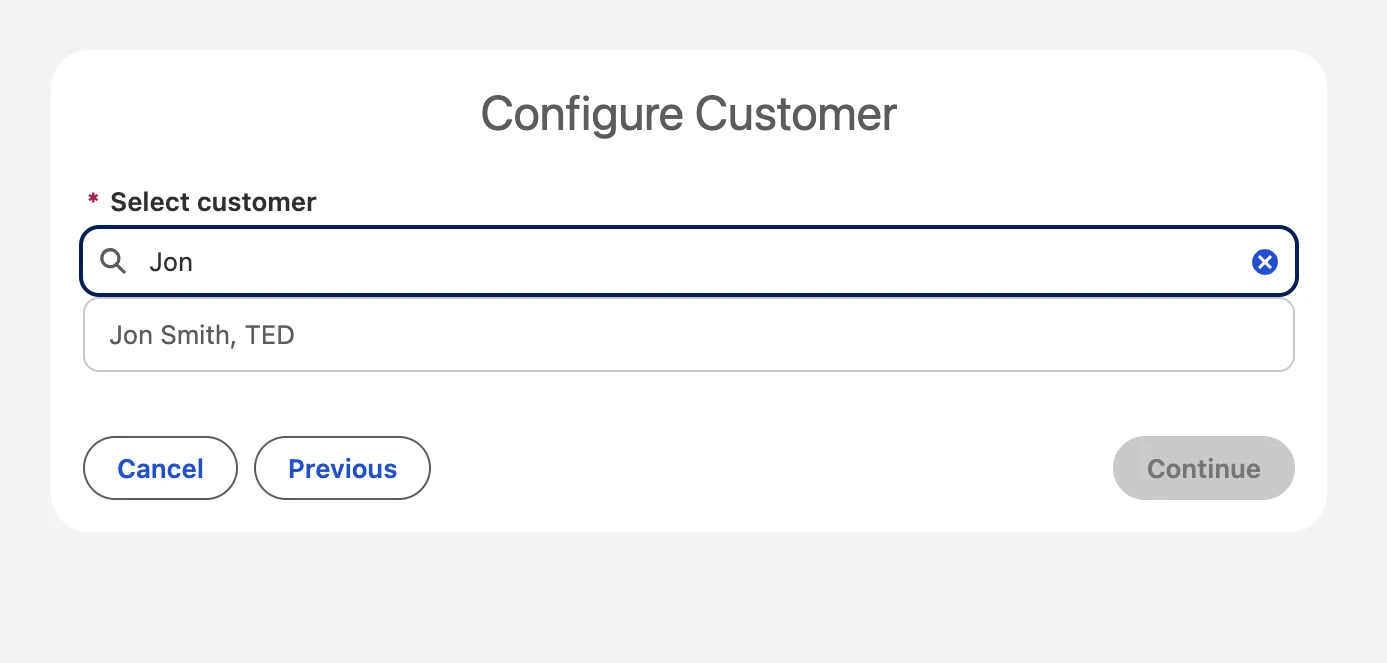
Open Setup Recurring Payment and choose the customer
Search for the customer the schedule belongs to.
-
2
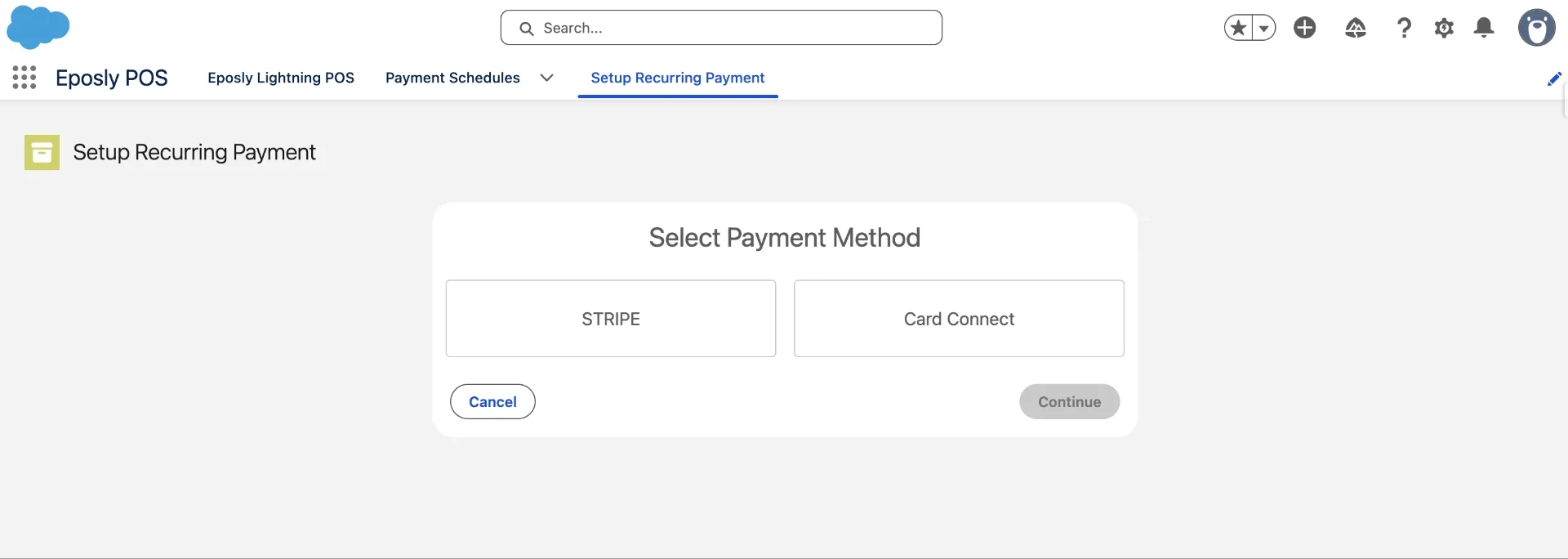
Select the payment method
Choose the gateway to collect on: Stripe or Card Connect.
-
3
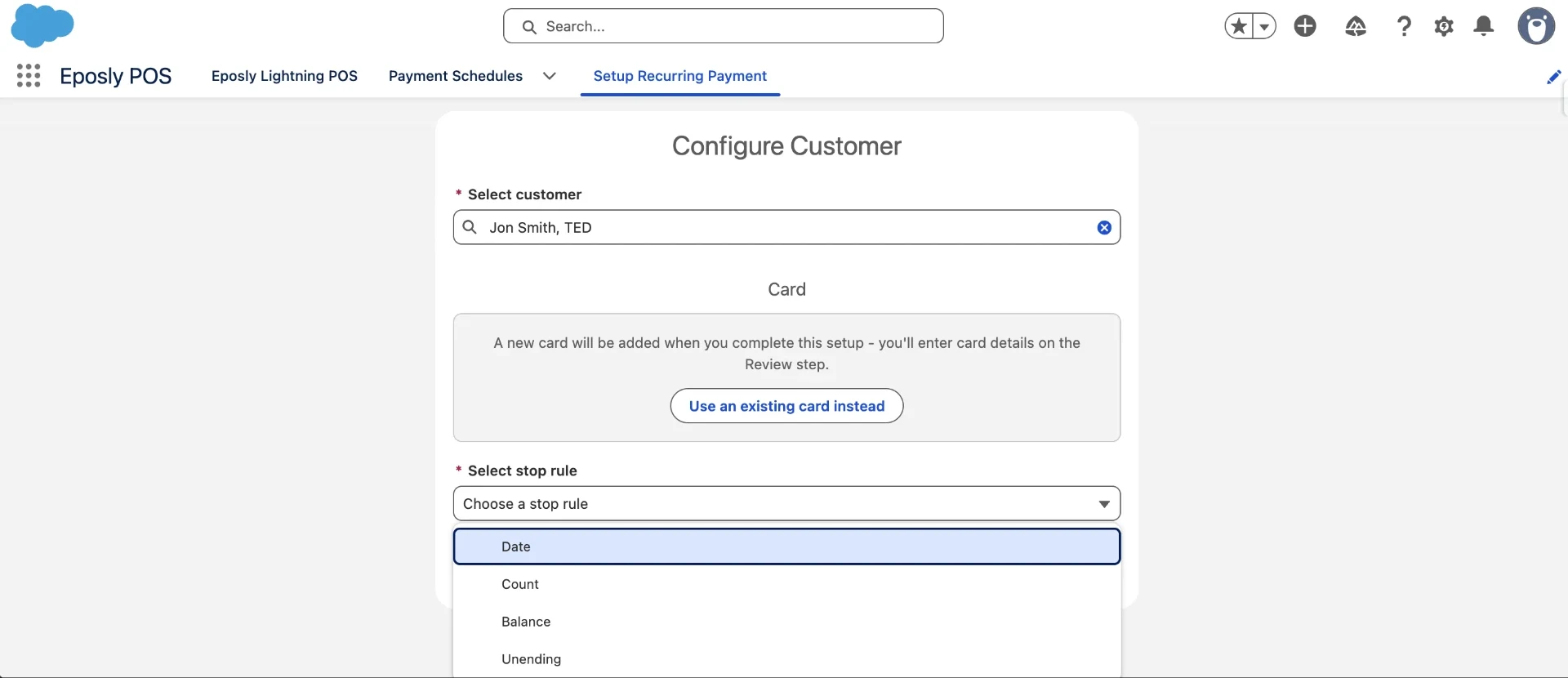
Choose the card and how the schedule ends
Add a new card (you enter the details at the Review step) or use an existing card, and choose how the schedule ends: Date, Count, Balance or Unending.
-
4
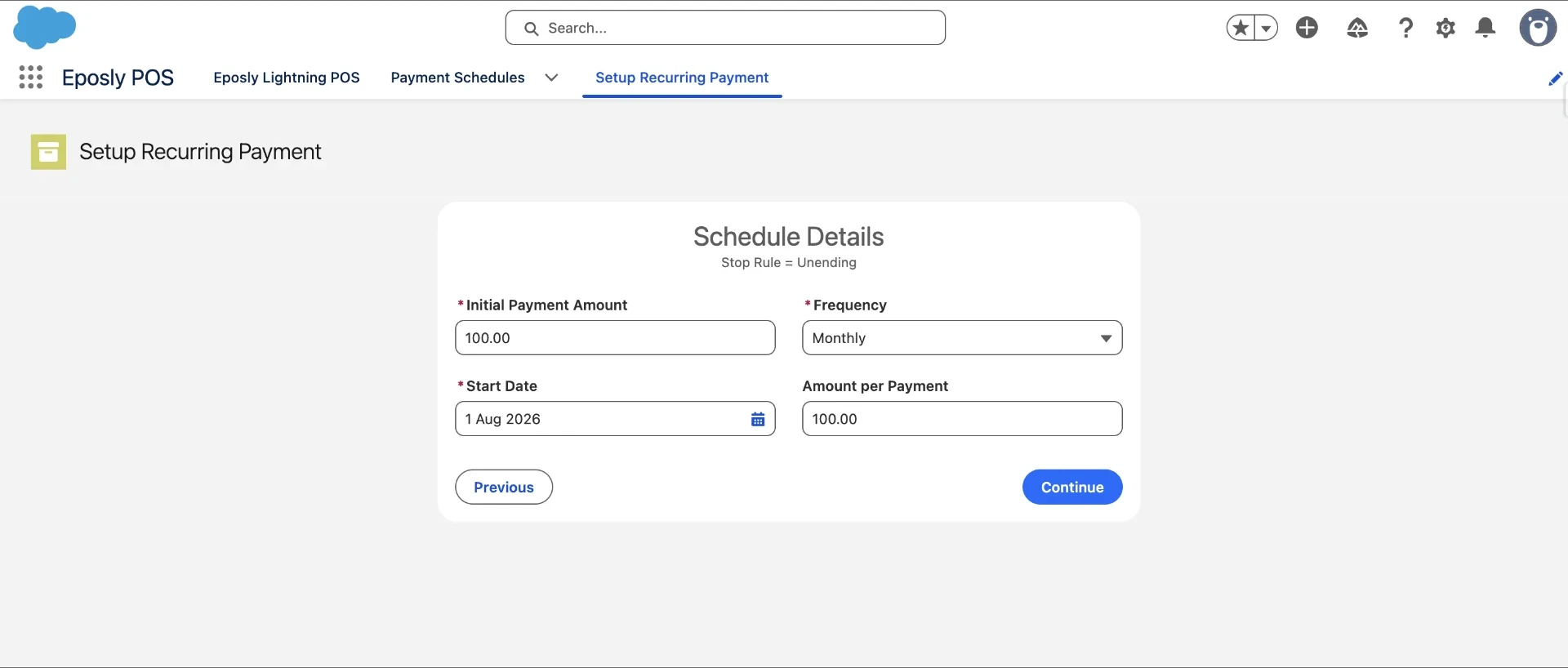
Enter the schedule details
Set the initial payment amount, the frequency, the start date and the amount per payment. The fields shown depend on the stop rule you chose.
-
5
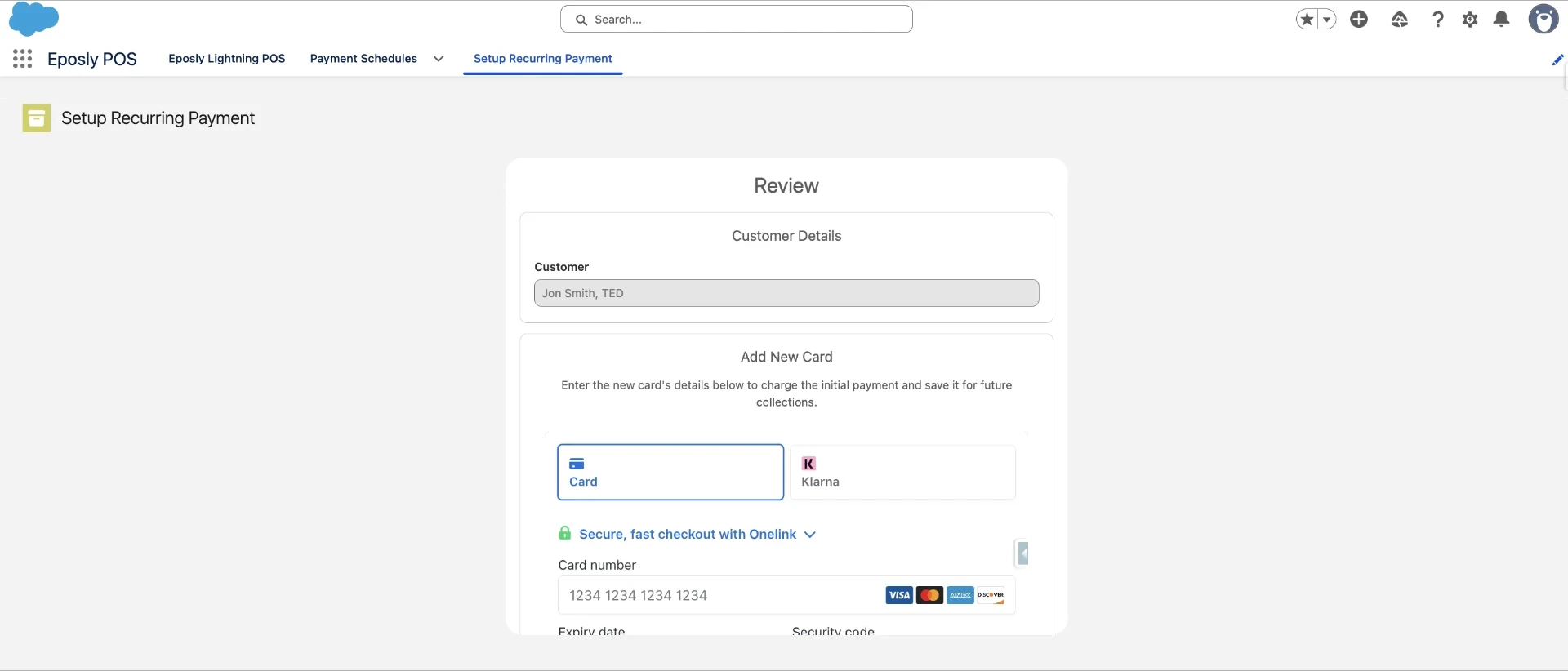
Review and take the first payment
Review the customer, the card and the upcoming payment schedule, then take the first payment. For a new card, enter the card details to charge the initial payment and save it for future collections.
-
6
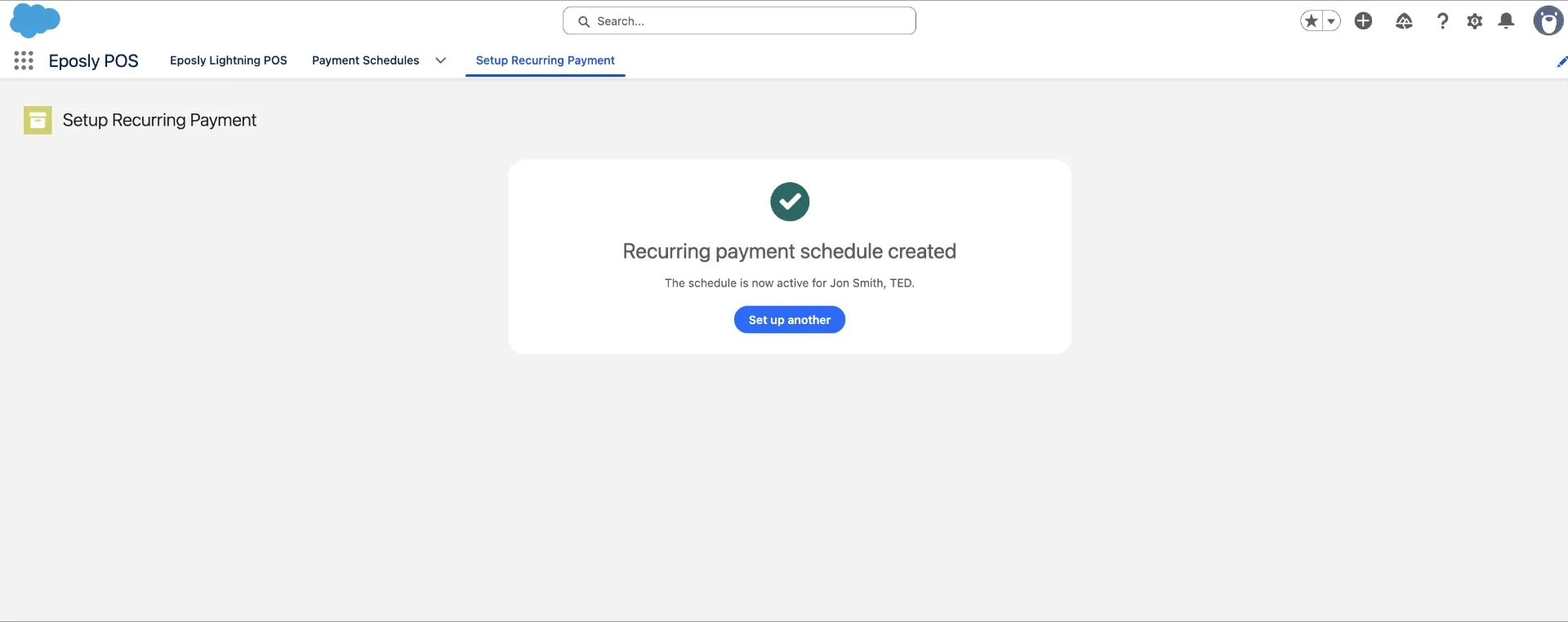
Done
The recurring payment schedule is created and active.
Set one up from Eposly point-of-sale order
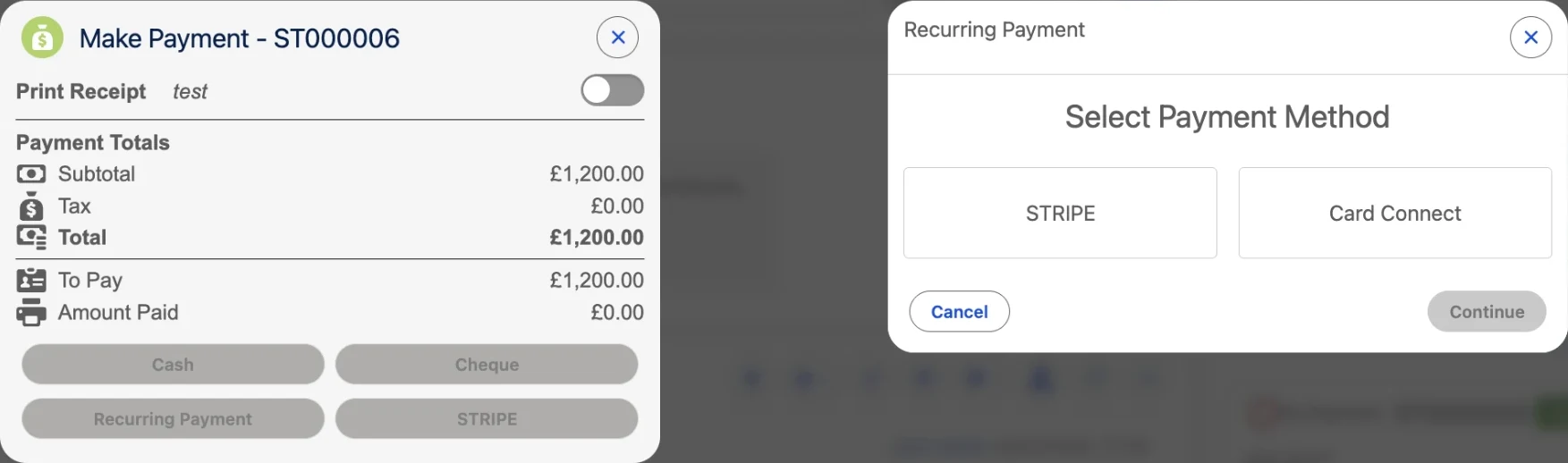
On an order, open Make Payment and choose Recurring Payment, then select the gateway (Stripe or Card Connect) and follow the same schedule setup. Eposly links the schedule and its payments to the order and the customer.
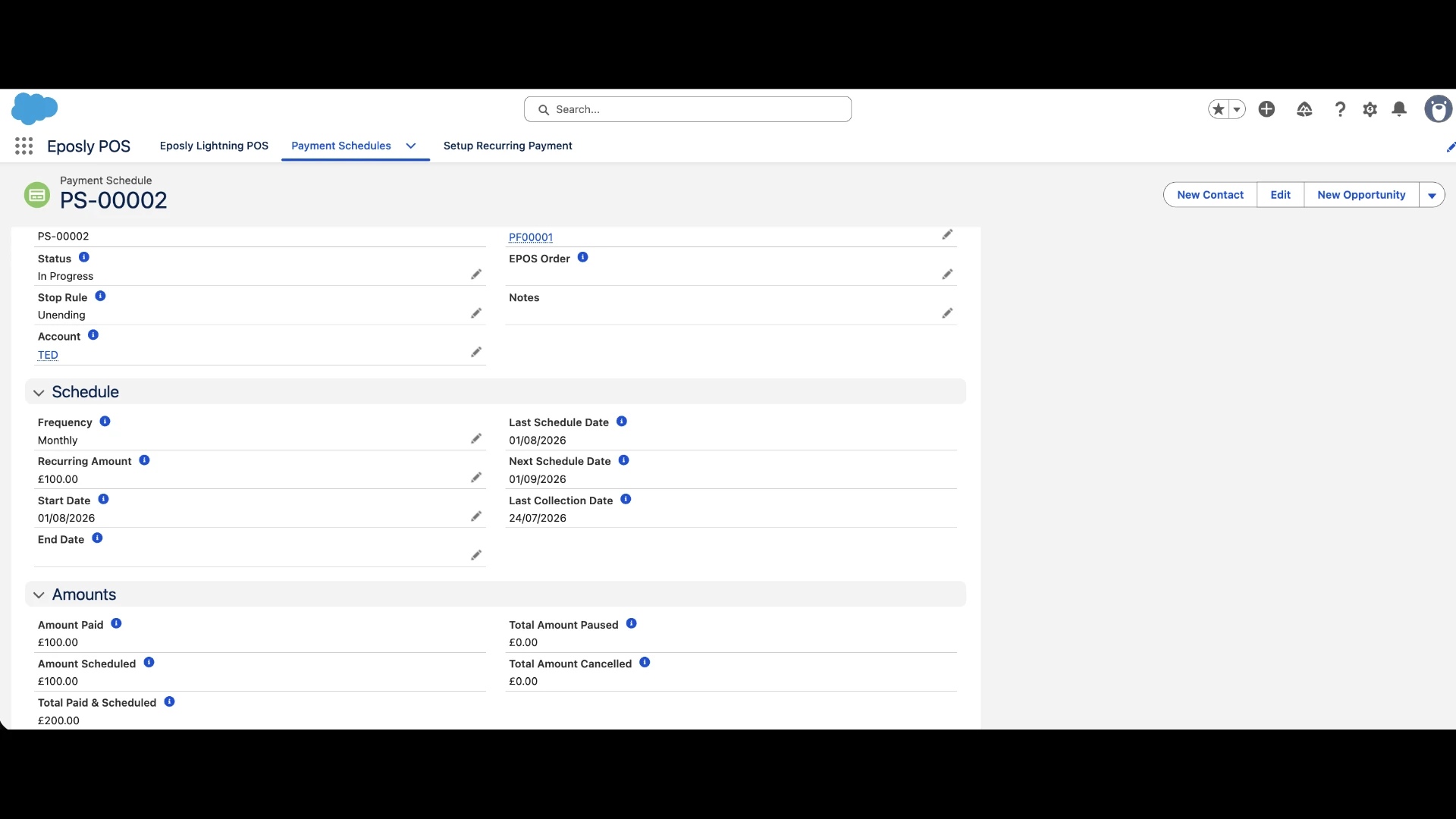
You can open the Payment Schedule record to see the schedule and its scheduled payments, including the frequency, amounts, next collection date and status, and pause it if you need to.
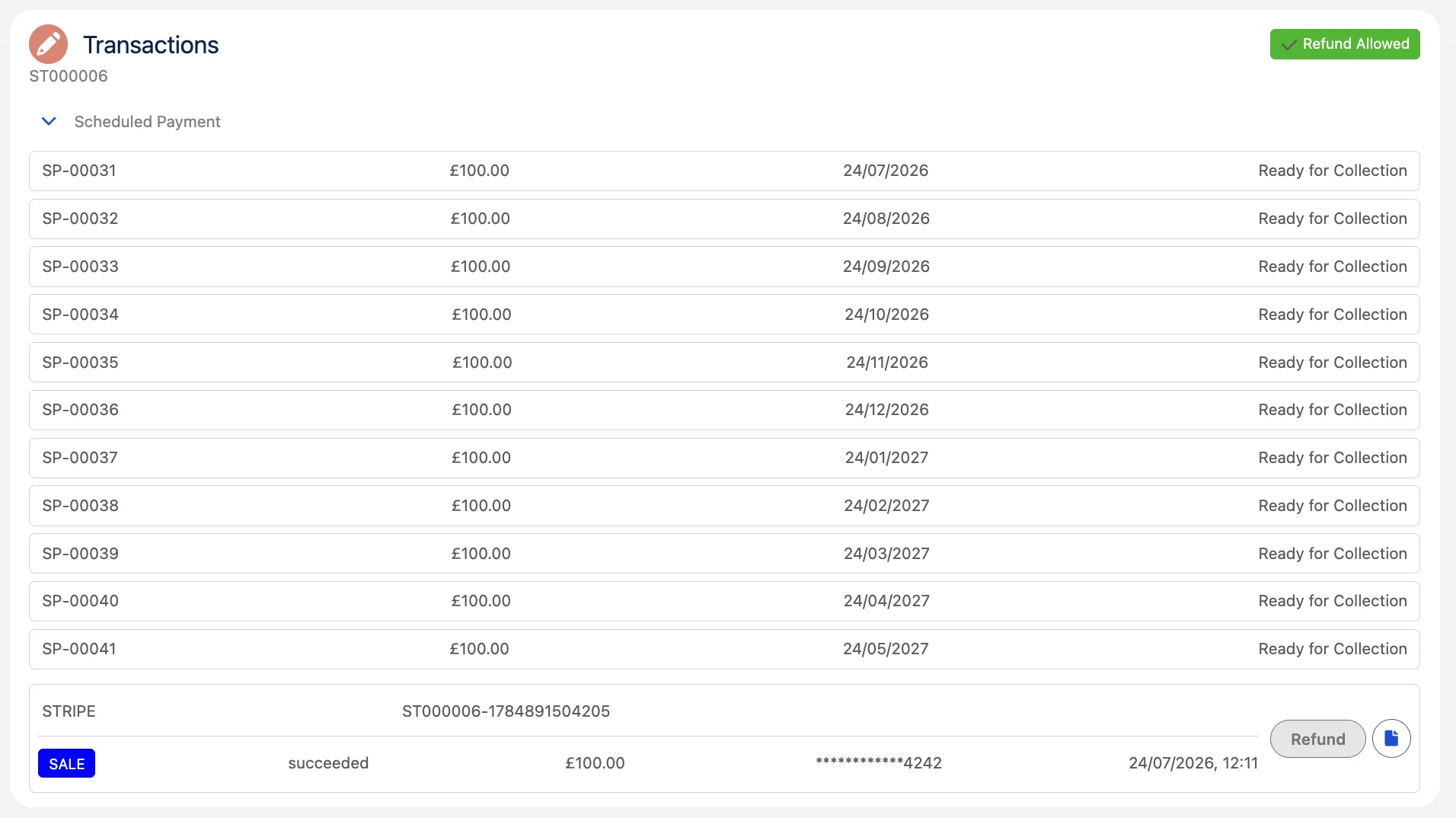
Once a schedule is running, Eposly collects each payment on its due date and records the result on the customer record. Full administrator detail will be available in the help centre.
If a payment fails, Eposly pauses the schedule, records the reason and flags it for follow-up in Salesforce. Failed payments are not retried automatically in this release.
Before you start
Recurring payments need a supported card payment gateway configured in your org: Card Connect (US) or Stripe. Recurring collection uses a saved card.
Configurable order notes
Give every order exactly the fields your process needs
Your standard order notes still work exactly as they do today. When your process needs more, an administrator can now use a Salesforce field set to replace the standard note fields with your own, configured per order kind. It's ideal for a quoting process (for example a job title, work description, quote validity, expiry date and status) and just as useful for delivery instructions, references or site locations.
Because these are standard Salesforce fields, you can use any field type, with the validation rules, required fields, formats and read-only formula fields you already rely on.
- The order notes section opens automatically when there are required fields to complete.
- Fields save automatically, with no save button.
- Each order kind can have its own set of fields.
- If no field set is configured, order notes work exactly as they do now.
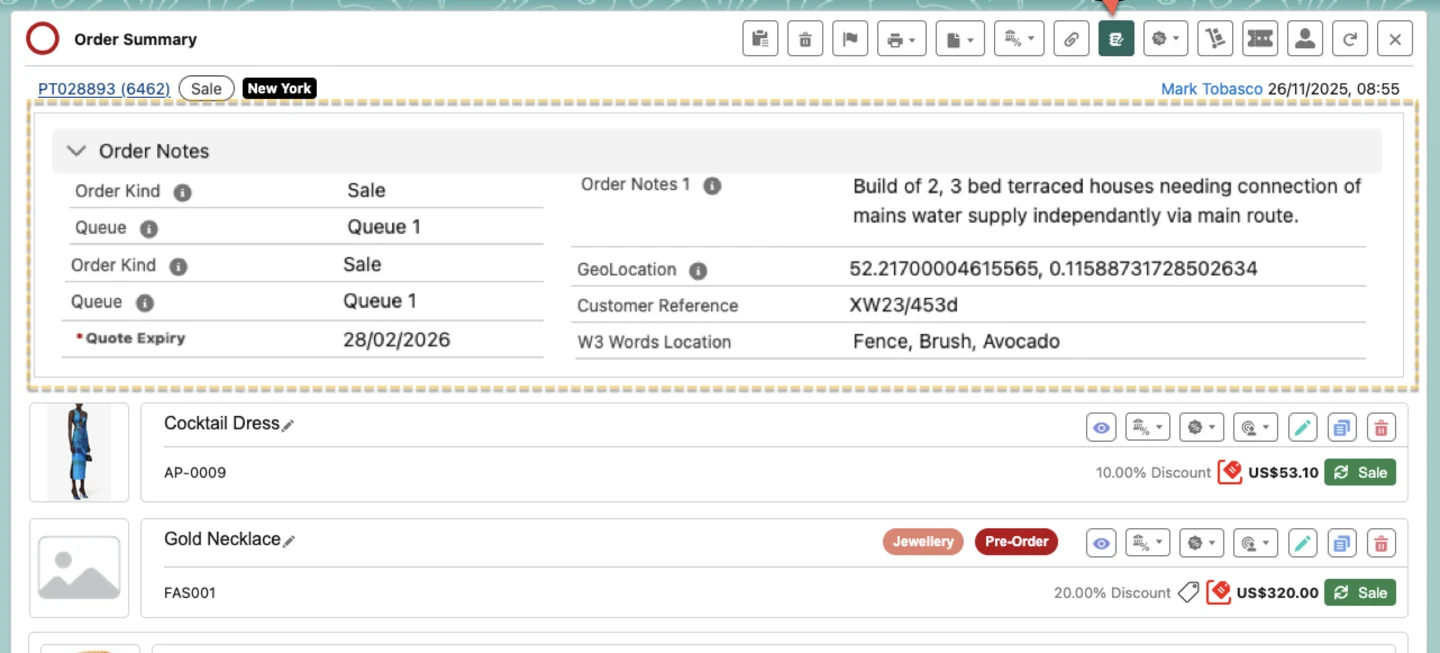
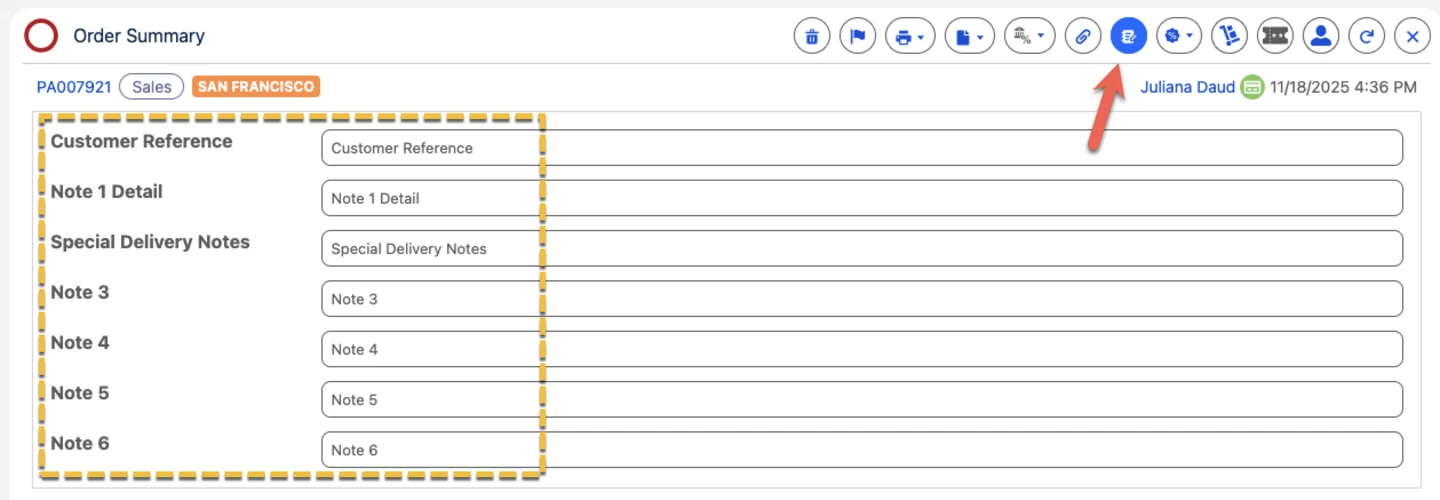
How to set it up. An administrator builds a field set with the fields you want, then sets it as the Order Notes Field Set on the relevant Order Kind. The steps will be available in the help centre.
Where Eposly is heading
The transaction layer for Salesforce keeps getting stronger
Eposly is increasingly the transaction layer for Salesforce: point of sale and payments, recorded natively on the customer record. For teams that sell in person, that means managing one-off sales and recurring card collections in one place, without leaving Salesforce. Recurring payments is the latest step in that direction.
Start collecting on schedule
Already on Eposly Point of Sale? Your customer success manager can help you switch recurring payments on and set up your first schedule.
Set up recurring paymentsNew to Eposly? See how Eposly brings point of sale and payments into Salesforce. Talk to our team.
FAQ
Frequently asked questions
Need help?
Need help configuring this release? Contact your Eposly customer success manager and we'll work on it together. The full list of changes will be available in the release notes.